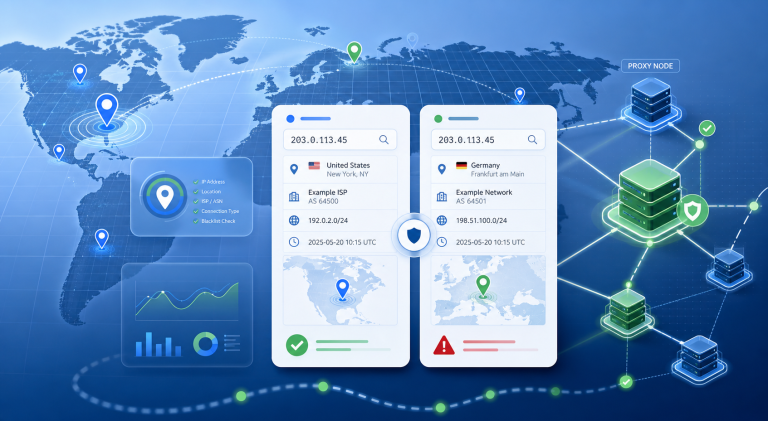
Proxy Timeout vs Connection Refused: Diagnose Before Rotating IPs

A proxy timeout and a connection refused error can look similar when a workflow fails: the request does not complete, the client reports a network problem, and the first instinct is often to rotate the IP.
That is not always the right first move. A timeout usually means the client waited too long for a usable response. A connection refused error usually means the connection reached something that actively rejected it. The fix depends on where the failure happened: DNS, protocol, port, authentication, client transport, proxy pool, target rate limits, or session rules.
This guide gives a practical diagnostic order for proxy users, buyers, and operators who need to separate setup errors from real proxy quality problems before replacing an endpoint.
Quick Difference: Timeout vs Connection Refused
| Signal | What it usually means | First checks |
|---|---|---|
| Proxy timeout | The client waited but did not receive a usable response in time. | Network path, DNS mode, timeout setting, proxy load, target response time. |
| Connection refused | The destination rejected the connection attempt. | Host, port, protocol, firewall rule, service availability, wrong endpoint. |
| 407 Proxy Authentication Required | The proxy expects credentials or a different authentication format. | Username, password, URL encoding, auth method, client support. |
| HTTP 429 | The target is limiting request pace, account behavior, or traffic pattern. | Rate limit scope, retry logic, account/session consistency, request cadence. |
The key is to avoid treating every failed request as an IP replacement problem. A rotating pool can still fail if the client is using the wrong protocol. A high-quality residential route can still timeout if the application waits only two seconds. A valid endpoint can still be refused if the port is incorrect.
Step 1: Confirm the Proxy Endpoint Before Testing Quality
Start with the endpoint itself. Check the hostname, port, protocol, username, password, and whether your plan expects HTTP, HTTPS, or SOCKS5. Small mistakes here create large-looking failures.
- Use the exact proxy host and port from the dashboard or provider settings.
- Do not mix an HTTP proxy URL with a SOCKS5-only endpoint.
- Encode special characters in usernames and passwords when the client requires URL-style credentials.
- Check whether the endpoint needs allowlisting, plan activation, or region parameters.
If the failure is an authentication issue, use a focused proxy login error checklist before changing the IP. Authentication failures often survive rotation because the same invalid credential format is reused across the new endpoint.
Step 2: Test With a Simple Client Before Debugging the Full App
When a browser, scraper, automation script, or app fails, reduce the test to a simple request first. A minimal cURL or command-line client helps you separate proxy connectivity from application-specific behavior.
If the proxy works in a simple client but fails in a Python library, browser extension, or automation stack, the issue may be transport support rather than proxy availability. For SOCKS5 cases, compare your result with a client-side SOCKS5 troubleshooting path.
Keep the first test boring: one endpoint, one destination, one protocol, and one request. Then add complexity back one layer at a time.
Step 3: Check DNS Mode and Protocol Behavior
Timeouts are common when the client resolves DNS locally but the target expects a region, network path, or protocol behavior that only works when DNS is resolved through the proxy route.
This matters especially for SOCKS5. Some clients use local DNS by default; others support remote DNS if configured correctly. If the same endpoint behaves differently across tools, review local versus remote DNS resolution before judging the proxy pool.
- For SOCKS5, confirm whether the client supports remote DNS.
- For HTTP proxies, confirm whether HTTPS tunneling is supported for the target.
- For browser tests, check whether the browser applies the proxy to all traffic or only some request types.
Step 4: Separate Proxy Pool Issues From Target-Side Limits
A timeout does not always happen inside the proxy network. The target may delay, throttle, challenge, or close connections based on traffic pattern, account state, request pace, or repeated failed attempts.
If errors appear after a burst of requests, after repeated retries, or only on specific endpoints, compare the result with an HTTP 429 and rate-limit diagnosis. In those cases, rotating faster can increase noise instead of improving completion rate.
If errors appear immediately on a fresh low-volume test across several destinations, the proxy endpoint, plan status, route, or protocol choice deserves closer review.
Step 5: Validate Location and Reputation Only After Connectivity Works
Location and reputation checks are useful, but they should come after basic connectivity. If the client cannot connect at all, an IP reputation score will not explain the root cause.
Once the proxy connects consistently, validate whether the route matches the intended country, ASN type, and risk profile. If location tools, blacklist checks, or proxy-detection labels disagree, treat those signals as a second-stage validation problem rather than the first explanation for a failed connection.
Step 6: Decide Whether to Rotate, Retry, or Change Setup
After the first five checks, the next action is usually clearer:
| Finding | Best next action |
|---|---|
| Wrong protocol, port, or credential format | Fix setup first. Rotation will not solve a repeated configuration error. |
| Simple client works, full app fails | Debug the client library, browser, DNS mode, or proxy application layer. |
| Only one target fails after repeated attempts | Reduce request pace and check target-side rate limits or session behavior. |
| Multiple destinations timeout on the same endpoint | Try another endpoint, region, or route and record the failure pattern. |
| Connectivity works but location or reputation is wrong | Adjust region selection, proxy type, or session requirements. |
For buyers comparing plans, this is where a broader proxy type comparison process helps. Some workflows need stable sessions. Others need distributed requests. Some need SOCKS5 flexibility. Others need simple HTTP setup with predictable authentication.
A Practical Proxy Connectivity Checklist
- Confirm host, port, protocol, username, password, and plan status.
- Test one endpoint with a simple client before debugging the full workflow.
- Check whether the client supports the required HTTP, HTTPS, or SOCKS5 behavior.
- Verify DNS mode, especially for SOCKS5 and browser-based traffic.
- Separate immediate connection failures from target-side rate limits.
- Validate location and reputation only after basic connectivity is stable.
- Rotate only when the evidence points to route, pool, or endpoint quality rather than setup.
Yilu Proxy can fit workflows that need residential proxy access and endpoint selection, rotating sessions, and SOCKS5 support. The important part is to test the setup in the right order, because the fastest way to waste time is to rotate IPs while the real problem is still protocol, DNS, authentication, or client behavior.